Fitness Smart Ring Tracking and Syncing Issues
When a fitness smart ring shows missing metrics or stale app data, the issue is usually either a tracking failure or a syncing delay. A tracking failure means usable data was not captured, while a syncing delay means captured data has not yet transferred to the app.
A tracking problem is more likely when the same period remains blank after the app connection is restored. A syncing problem is more likely when the fitness smart ring appears connected but the app still shows an older sync state. The likely cause can shift between sensor contact, app compatibility, phone settings, recent wear conditions, and battery state, so the practical result is either missing captured data or delayed data transfer.
Classify the symptom before applying fixes. Check whether the fitness smart ring had a secure fit, whether its sensors maintained skin contact, and whether the battery remained powered during the affected period. Then check whether Bluetooth is active, the required app permissions are enabled, and the app can communicate with the ring.
Missing data and delayed syncing are different conditions: data that was not captured cannot be restored through syncing, while captured data may appear after the Bluetooth connection, app state, permissions, or firmware process returns to a working state.
- Missing metric: inspect sensor contact, ring fit, battery interruption, and whether the fitness smart ring was worn during the affected period.
- Stale app data: inspect the Bluetooth connection, app connection status, phone permissions, and whether background data transfer is restricted.
- Repeated disconnection: confirm that the ring and phone remain paired, the app version supports the device, and no phone setting is blocking Bluetooth access.
- Power interruption: confirm that the battery charges through the intended charging path and that the fitness smart ring remains powered after removal from the charger.
- Problem after an update: check the installed app and firmware status, then use the manufacturer’s support process when missing data or connection failures continue after the basic checks.
Tracking, Syncing, and Connection Problems That Look Similar
A tracking failure means the ring did not capture usable data, a syncing delay means stored data has not yet reached the app, and a connection problem interrupts communication between the ring and the app. Identifying which stage has failed helps narrow the first diagnostic check before applying broader troubleshooting; the fitness smart ring guide explains the overall device workflow.
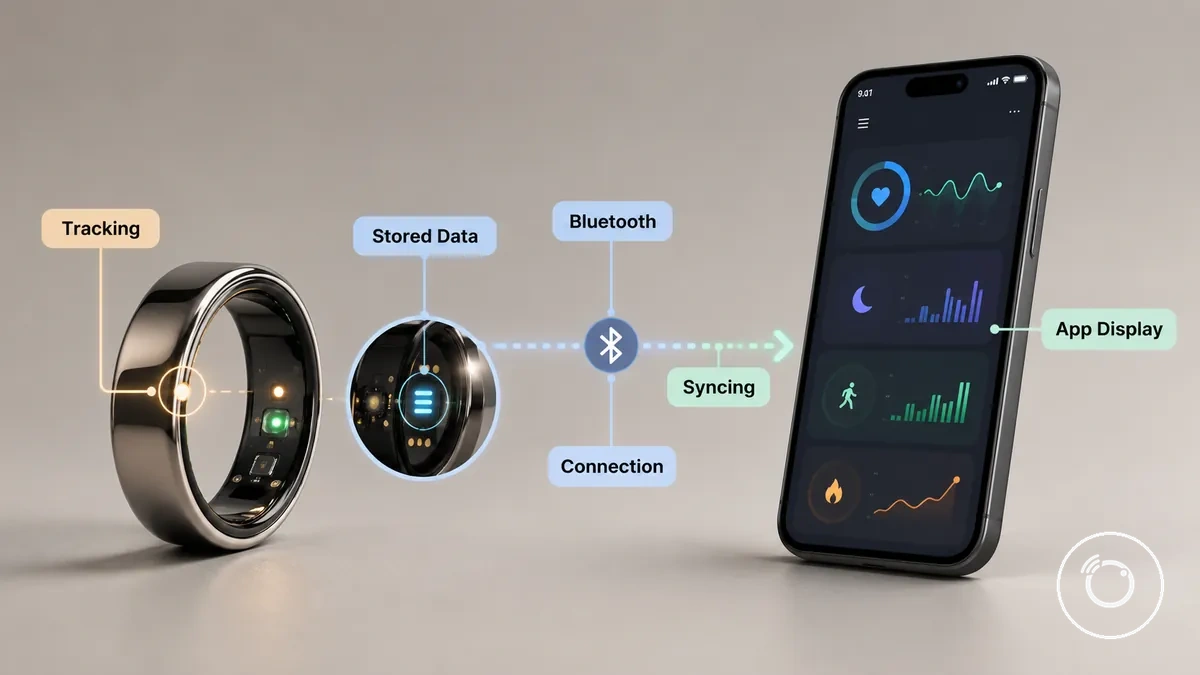
Follow the data path when classifying the issue. First confirm whether sensor capture created stored data on the ring. Next check whether Bluetooth transfer is completing. Finally, verify that the app has refreshed and is displaying the latest app data. A delayed update does not necessarily indicate a tracking failure because stored data may still be waiting to sync with the app.
| Problem pattern | What changes | First check | What it may mean |
|---|---|---|---|
| Tracking failure | Sensor capture does not create usable ring data for the affected activity. | Check ring fit and sensor contact during wear. | The data gap likely started before any stored data was created. |
| Syncing delay | Stored data remains on the ring instead of appearing as current app data. | Check Bluetooth transfer and the current sync status. | The activity may already be recorded even though the app has not updated. |
| Connection problem | Communication between the ring and app is interrupted. | Check Bluetooth availability, pairing status, and app connection. | Data transfer is likely blocked while sensor capture may still continue. |
| App display delay | The app does not show the newest available data after transfer. | Check whether the app has refreshed and whether required permissions remain enabled. | The information may already be available but has not yet appeared on the screen. |
Tracking Gaps Versus App Syncing Delays
A tracking gap occurs when sensor capture does not produce recorded data, while a syncing delay means recorded data has not yet appeared in the app display. The key distinction is whether the interruption happened during data capture or after the data was recorded. The diagram below shows where each symptom occurs so the next check stays focused.
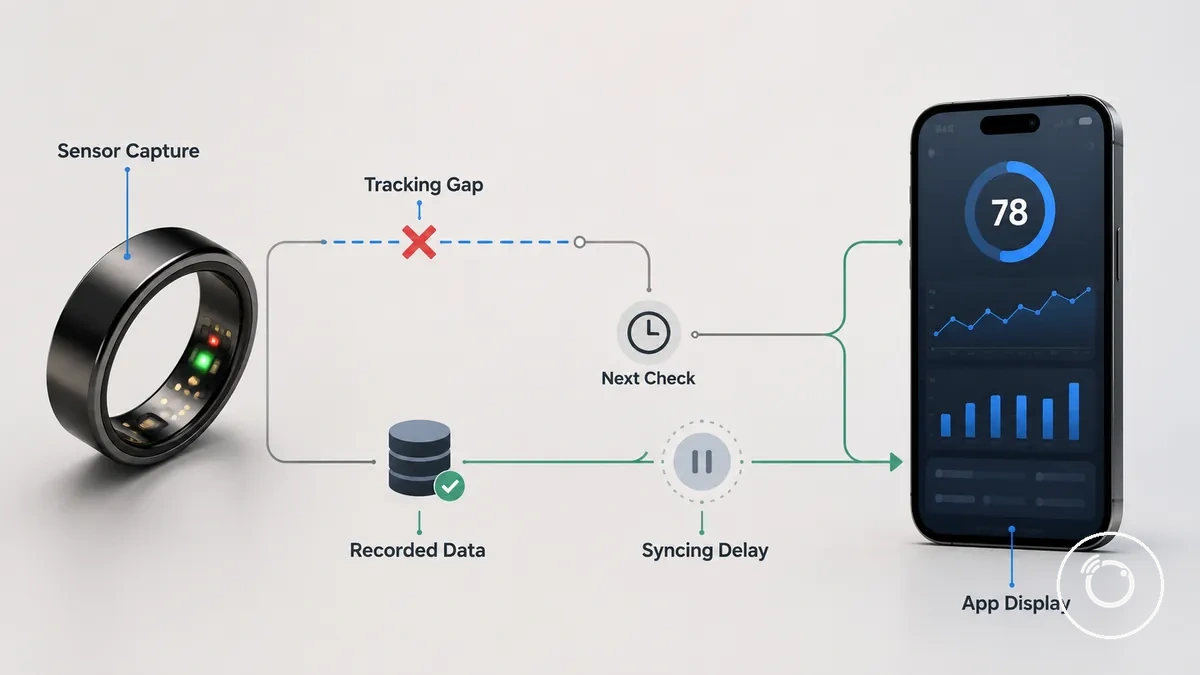
- Tracking gap: If the expected metric was not recorded, check sensor capture, ring fit, and sensor contact as the next check.
- Syncing delay: If recorded data has not appeared in the app display, check Bluetooth transfer and the current sync status because the data may still appear after syncing completes.
- Missing metric: A data gap indicates the activity was not recorded, while a delayed update indicates the app display has not yet reflected the recorded data.
- Next check: Identify whether the issue is capture or display first, then troubleshoot that stage instead of treating both as the same problem.
Connection Failures Versus Data That Has Not Updated Yet
When a connection failure happens, the app may show data that is not updated even though the ring has not finished transferring information. A connection failure interrupts data transfer, while a processing delay means recorded information may still appear after the current app session refreshes. The annotated example below helps distinguish a failed connection from a temporary update delay.
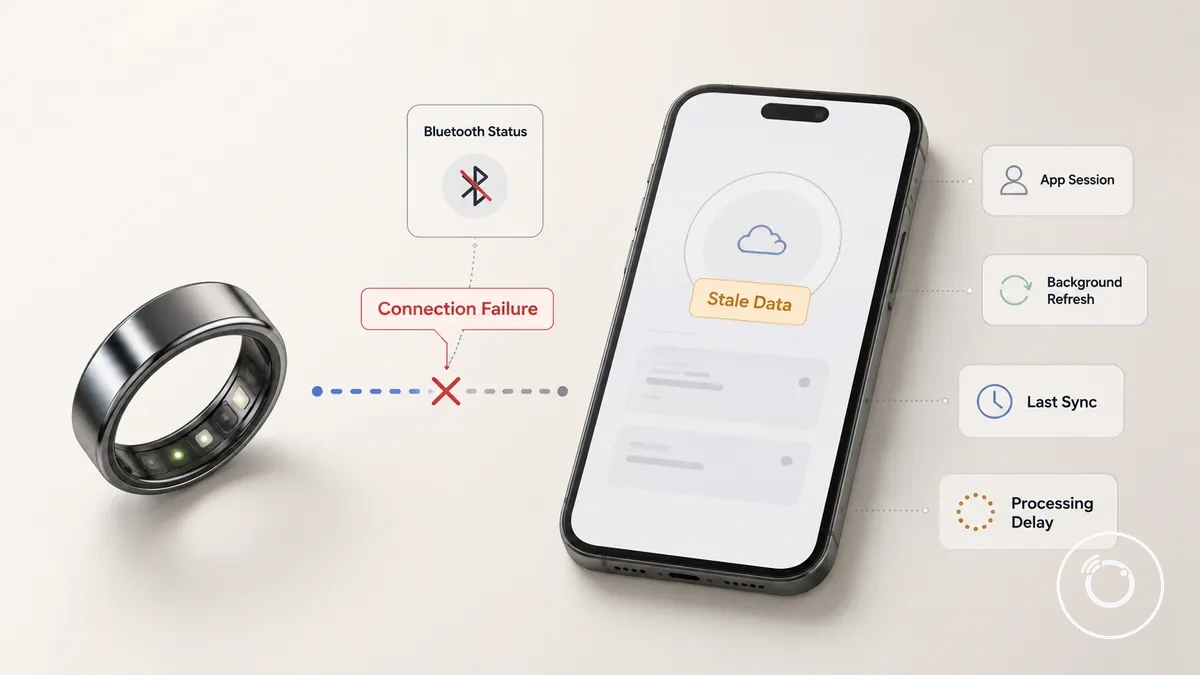
The checklist below helps identify whether the display reflects a connection failure or data that has not updated yet.
- Bluetooth status: If the Bluetooth status shows the ring is disconnected, a failed transfer is a likely cause of stale data.
- App session: If the app session has not refreshed, close and reopen the app to check whether newer information appears.
- Background refresh: If background refresh or processing is still in progress, the app may continue showing stale data until the update finishes.
- Last sync: Compare the last sync time with your latest activity. An older timestamp can indicate a transfer delay or processing delay rather than confirmed data loss.
Common Causes of Missing Fitness Smart Ring Data
Missing fitness smart ring data usually comes from capture, power, connection, permission, or firmware conditions rather than a single cause. The diagnostic diagram below organizes these cause groups so you can relate a missing metric, delayed sync, or connection error to the most likely system area before deciding what to check next.
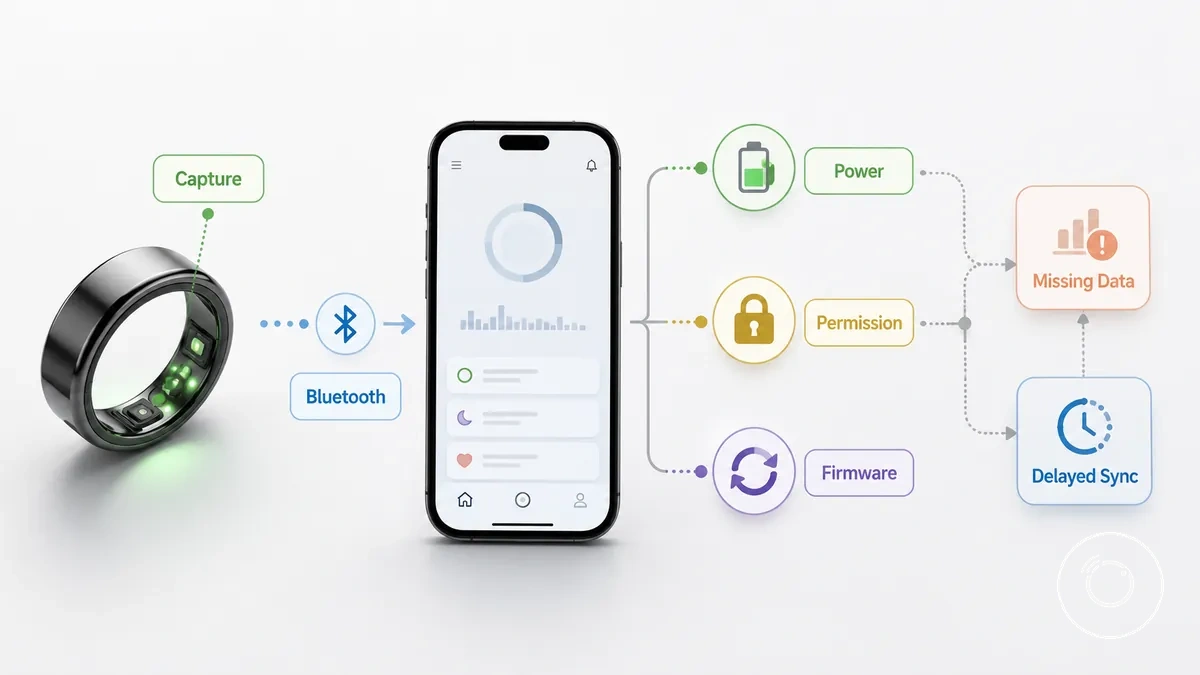
The table below groups common symptoms by cause category and explains what each check indicates.
| Symptom | Likely cause group | Check | What it means |
|---|---|---|---|
| Missing metric | Capture | Ring fit and sensor contact | Poor ring contact can interrupt capture and create a tracking interruption or data gap. |
| Missing data | Power | Battery condition | A low battery condition can reduce ongoing tracking until sufficient power is available. |
| Connection error | Connection | Bluetooth connection state | A disconnected Bluetooth connection can prevent recorded data from transferring to the app. |
| Delayed sync | Permission | App permission status | Required app permissions that are disabled can block updated information from appearing. |
| Delayed sync | Firmware | Firmware update state | A pending or incomplete firmware update can delay normal processing or synchronization. |
A single symptom can point to different cause groups. For example, delayed sync may result from a connection issue, restricted permission, or a firmware condition, while a missing metric is more commonly associated with capture quality or battery condition. Consider both the symptom and the relevant system area before attributing the problem to one specific cause.
Poor Ring Fit, Sensor Contact, or Wearing Position
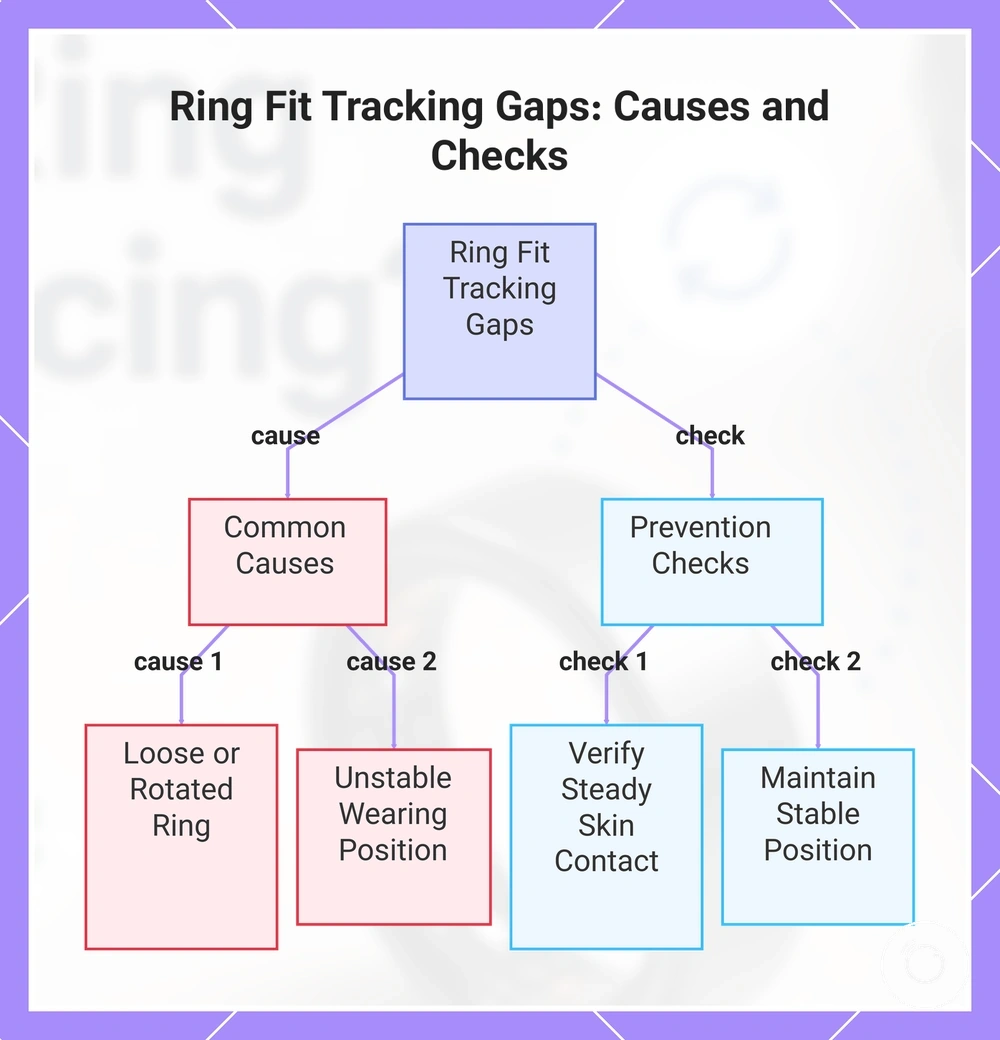
Poor ring fit, inconsistent sensor contact, or an unstable wearing position can create tracking gaps because the sensors lose reliable skin contact during measurement. A loose ring or a ring that rotates on the finger is more likely to affect sleep, heart rate, recovery, or step data than a ring that maintains consistent skin contact.
- Check that ring fit maintains steady skin contact; intermittent contact can lead to tracking gaps in heart rate or recovery data.
- Keep the wearing position stable. A rotated ring can reduce consistent sensor contact and contribute to missing sleep or heart rate data.
- A loose ring can shift during daily activity or overnight movement, increasing the chance of tracking gaps in step, sleep, or recovery metrics.
- If finger placement or ring position changes repeatedly during normal wear, review fit-related tracking problems to identify common wearing conditions that affect sensor contact.
This chart explains the main causes of tracking gaps due to ring fit, sensor contact, or wearing position, and shows how to check for steady skin contact and stable position.
Low Battery, Charging Interruptions, or Dirty Charging Contacts
Low battery, charging interruptions, or dirty charging contacts can interrupt tracking before a software problem is involved. Check the ring's power level and charging reliability first, because an incomplete charge or repeated interruption can leave tracking data incomplete.
- Confirm the power level. A low battery can interrupt tracking until the ring is charged.
- Inspect the charging contacts for dirt or residue. Dirty contacts can interrupt charging by preventing consistent electrical contact.
- Make sure the charging case or charger keeps the ring correctly seated so charging can continue without interruption.
- Check that the charging cable and power source maintain a stable connection throughout the charging session rather than disconnecting intermittently.
- If charging repeatedly stops after basic cleaning, reseating, and compatible charging checks, consider the interruption a possible cause of the tracking gap before assuming a hardware fault.
Bluetooth, App Permission, or Background App Restrictions
Bluetooth, app permission, or phone-side restrictions can block data transfer even when the smart ring is still capturing data. Check the relevant phone settings before assuming tracking has stopped, because restricted access can leave the app showing stale app data instead of recent measurements.
- Confirm that Bluetooth is enabled and the ring remains connected. A disconnected Bluetooth state can block new data from transferring to the app.
- Review app permission settings. If the phone or app requires Bluetooth or nearby-device access, denying that access can prevent syncing.
- Check whether background activity is allowed. If the app is restricted from running in the background, data transfer can pause until the app is opened again.
- Review battery optimization or similar app restrictions. Labels differ by phone and app, but restrictive power settings can delay background syncing and leave stale app data.
- If phone settings recently changed, restore the required connection and permission settings, then reopen the app to check whether syncing resumes before investigating deeper causes.
App Version, Firmware, Cache, or Phone Software Conflicts
An outdated app version, interrupted firmware state, stale cache, or phone software conflict can cause stale data, a refresh failure, repeated connection loops, or missing display data. Check these reversible software states before considering a reinstall or reset.
- Check the app version and apply an available update through the normal app update process. An outdated version can prevent the app from completing a refresh or displaying newly transferred data correctly.
- Review any firmware update prompt and confirm whether the update finished. An interrupted firmware process can contribute to a pairing issue or repeated connection attempts.
- Refresh the app or clear only the temporary cache when that option is available. A stale cache can preserve outdated display data even after new information has transferred.
- Check whether the phone software was recently updated or is awaiting an update. A software conflict between the phone and app can cause a refresh failure until both software states are current and the app is reopened.
- Verify the account session by confirming that the app is signed in to the expected account. An expired or incorrect session can prevent recent data from appearing even when the ring remains associated with the app.
Fixes for Fitness Smart Ring Tracking Problems
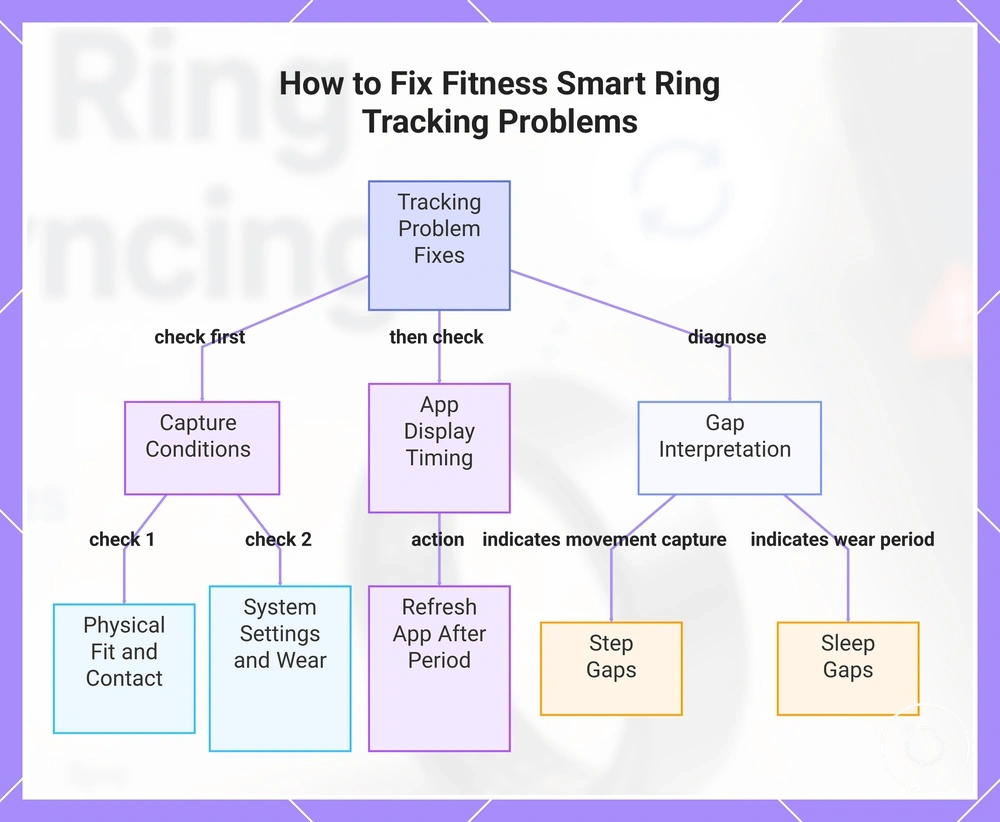
Tracking fixes should begin with capture conditions before deeper software actions. Check ring fit, sensor contact, battery level, metric permissions, and wear time first because weak capture conditions can produce incomplete or missing results.
Work through the checks in order and compare the missing metric with the condition required to record it. For broader interpretation of unusual readings rather than absent data, see accuracy and tracking issues.
- Check ring fit. Confirm that the ring sits securely without rotating freely. A loose fit can weaken sensor contact and leave gaps in recorded metrics.
- Inspect sensor contact. Reposition the ring so the sensing area maintains direct skin contact. Interrupted contact can reduce the amount of usable data captured.
- Confirm the battery level. Charge the ring when the battery is low before testing tracking again. A low battery level can interrupt capture before a metric is fully recorded.
- Review metric permissions. Confirm that the required health or activity permission is enabled for the missing metric. A disabled permission can prevent that metric from appearing even when other data remains available.
- Check recent wear time. Wear the ring continuously for the period required by the metric being assessed. Limited wear time can create partial results or no result for that period.
- Allow for app display timing. Reopen or refresh the app after the expected recording period. If the ring captured the data but the display is delayed, the metric may appear after the next app refresh rather than after a tracking fix.
Step gaps point to movement capture, sleep gaps point to whether the ring was worn through the sleep period, and other health metric gaps can point to permission, wear-time, or sensor-contact conditions. These differences help separate a general tracking problem from a missing metric with a specific capture requirement.
If capture conditions are adequate but the app still shows no recent result, treat app display timing as a separate interpretation check rather than immediately assuming that the ring failed to track.
This chart shows the systematic approach to diagnose and fix missing metrics on a fitness smart ring, starting with capture conditions before deeper software actions.
Steps and Activity Data Not Updating
When steps or activity data are not updating, check the local capture conditions before assuming tracking has stopped. Activity data can appear later if wear time was too short or the app refresh has not yet displayed the latest recorded values.
- Check wear time. If the ring was worn for only a short period, the activity metric may show a delayed value or a gap until enough movement has been recorded.
- Review activity recognition. Regular walking or daily movement is more likely to be recognised than brief or limited movement, so low activity can result in a missing step count or delayed activity data.
- Perform an app refresh. If the ring has already captured activity data, reopening or refreshing the app may display the latest movement data after processing completes.
- Confirm the battery state. A low battery state can interrupt activity recording before new steps or activity data are stored.
- Check the ring's connection status. If the connection has been interrupted, recorded activity data may remain on the ring until the next successful transfer and app refresh.
Sleep Data Not Recording Overnight
Sleep data that is missing or incomplete after overnight wear is usually linked to overnight wearing conditions or delayed processing rather than immediate data loss. Check overnight wear, fit, battery level, and allow for a possible processing delay before assuming the sleep metric was not recorded.
- Check the ring fit. A secure fit that maintains skin contact throughout overnight wear is more likely to produce recorded sleep data than a ring that shifts during sleep.
- Review overnight wear duration. Removing the ring during the night or wearing it for only part of the sleep period can result in a partial result or missing sleep data.
- Confirm the battery level. A low battery level during overnight wear can interrupt sleep data recording before the session is complete.
- Allow sync to finish. Sleep data may remain unavailable until the recorded overnight data has been transferred to the app.
- Wait for app processing. A processing delay may temporarily postpone the display of sleep data even after syncing has completed, so check the app again after processing finishes.
Heart Rate, Recovery, or Health Metrics Missing
Heart rate, recovery, or health metrics that are missing are usually linked to a sensor condition or app setting rather than the meaning of the result itself. Weak sensor contact, motion during measurement, a low battery state, outdated firmware, or disabled permissions can lead to a missing, delayed, or irregular metric.
- Check sensor contact. The ring should maintain steady skin contact because loose contact can prevent heart rate or recovery data from being recorded consistently.
- Reduce motion during measurement. Continuous movement can interrupt data capture and contribute to irregular HR data or a missing metric.
- Confirm the battery state. A low battery state can interrupt measurement before heart rate or other health metrics are fully recorded.
- Review the ring and app firmware. If an update is available, install it before checking whether the missing metric appears again.
- Verify app permissions. Required permissions for heart rate, recovery score, and related health metrics should be enabled because disabled access can prevent recorded data from appearing.
These checks apply only to metric availability and should not be used as a medical diagnosis or as evidence of clinical accuracy.
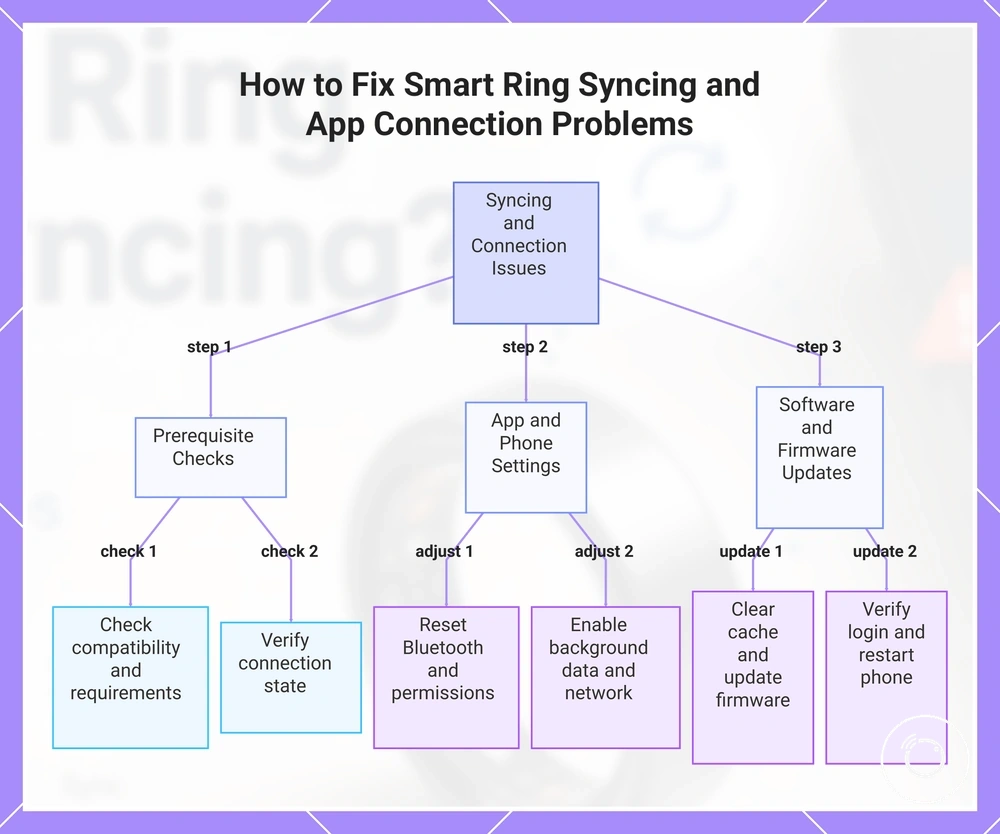
Fixes for Smart Ring Syncing and App Connection Problems
Syncing fixes address how recorded information transfers from the ring to the phone and appears in the app. An app connection can fail when the Bluetooth state, permissions, software version, account session, or network condition blocks that transfer.
Work through these phone and app checks in order. Confirm app compatibility and syncing requirements when the app cannot detect or maintain a connection with the ring.
- Check the phone and ring connection state. Keep the ring near the phone, open the correct companion app, and confirm the ring is not connected to another device. A competing or inactive connection can leave the app not connecting.
- Reset the Bluetooth state. Turn Bluetooth off and back on, then reopen the app. If the ring remains listed but unavailable, remove the saved pairing only when the manufacturer’s pairing process supports reconnecting through the app.
- Review app permissions. Enable the Bluetooth or nearby-device permissions required by the phone. If the phone uses location access for Bluetooth scanning, disabled location permission can block ring discovery.
- Check background and network access. Allow the app to use background data and confirm the phone has an active network connection. A blocked background state or unavailable network can delay account updates and leave a stale display.
- Refresh the app cache. Close and reopen the app first. Where the phone provides a cache-clearing option, clear only the temporary cache because a stale cache can preserve an outdated connection or display state.
- Update the app and ring firmware. Install an available app update and complete any supported firmware update under the manufacturer’s stated conditions. A mismatch between app software and firmware can interrupt syncing.
- Verify the login session. Confirm the app is signed in to the intended account. An expired or incorrect login can prevent transferred information from appearing in the expected profile.
- Restart and reconnect. Restart the phone, reopen the app, and allow the ring to reconnect before checking the latest values. Reinstallation should be reserved for cases where the app remains corrupted or unresponsive after the less disruptive checks.
Reconnecting can restore transfer and display of information already recorded by the ring, but it cannot recreate information that the ring never captured. If the connection is restored and the period remains empty, the original issue may have occurred during tracking rather than syncing.
This chart shows the ordered checks and adjustments needed to resolve syncing and app connection issues with a smart ring.
Bluetooth Reconnection and Phone Pairing Checks
Bluetooth reconnection and phone pairing checks diagnose the connection state between the ring and the phone rather than whether data was captured. Start with simple connection checks before considering re-pairing because failed connections or delayed sync can result from pairing status, distance, duplicate pairing, or a permission condition.
- Toggle Bluetooth reconnection by turning Bluetooth off and back on, then reopen the companion app to refresh the connection state.
- Check distance. Keep the ring near the phone during syncing because greater distance can interrupt the connection or delay sync.
- Review the phone pairing state. If the ring is paired with another nearby device or appears as a duplicate pairing, the intended connection may fail until only the correct pairing remains active.
- Confirm the required permission condition for Bluetooth discovery on the phone. Missing Bluetooth or nearby-device access can prevent the ring from connecting even when Bluetooth is enabled.
- Use re-pairing only when the stored pairing remains unavailable after the earlier checks. Remove the pairing only when a duplicate, missing, or inactive pairing state is present, then complete the supported pairing process again.
App Refresh, Update, Cache, and Reinstall Checks
App refresh and update checks address an outdated, cached, interrupted, or signed-out app state that can contribute to sync failure or missing display values. Complete the least disruptive maintenance steps first, then consider reinstall only when earlier checks do not restore normal app behaviour.
- Force an app refresh. Close the app completely, reopen it, and restart the phone if the session remains interrupted. This can replace a stale app state without changing account information.
- Check for an update. Install any available app update because an outdated version can prevent current sync behaviour or display changes from appearing correctly.
- Complete a firmware prompt. If the app displays a firmware prompt, finish it only through the manufacturer's supported process. A pending firmware update can interrupt syncing until it is completed.
- Clear the cache carefully. Use the phone's cache-clearing option only when it removes temporary files without removing account information or supported app records. A stale cache can preserve outdated display content.
- Verify the sign-in state. Confirm the app is signed in to the intended account. A signed-out or interrupted session can prevent synced values from appearing in the correct profile.
- Use reinstall as the final maintenance step. Reinstall the app only after app refresh, update, firmware prompt, cache, and sign-in checks have been completed, and follow the manufacturer's supported recovery process. Reinstalling refreshes the app installation but does not guarantee recovery of missing information.
Charging and Power Checks Before Deeper Troubleshooting
Charging checks should come before resets or support requests because unstable power conditions can interrupt both tracking and syncing. Confirm that the ring has sufficient battery percentage and is charging normally before investigating app or connection problems.
Use the following criteria to distinguish normal charging conditions from possible power-related faults. For broader battery and charging checks, continue with the dedicated charging guide after completing these basic checks.
| Power check | Normal condition | Warning sign | Next action |
|---|---|---|---|
| Battery percentage | Battery percentage increases or remains stable while charging. | Battery percentage stays low or continues to decrease. | Continue charging and confirm the power source is working. |
| Charging cable and charger contact | Charging cable remains securely connected and charger contact is stable. | Charging repeatedly starts and stops or requires repositioning. | Reconnect the cable and inspect the charging contacts. |
| Charging case | Charging case supplies consistent power to the ring. | The ring does not charge or charging is repeatedly interrupted. | Check the charging case connection and available power. |
| Power source | Power source provides uninterrupted charging. | Charging disconnects unexpectedly. | Try another suitable power source. |
| Indicator behavior and charging duration | Indicator behavior shows an active charging state and changes after sufficient charging duration. | No charging indication or no indicator change after adequate charging time. | Inspect the charging accessories before continuing with software troubleshooting. |
If charging remains inconsistent after these charging checks, the issue is more likely to involve the charging cable, charging case, charger contact, or power source than the app. If the ring charges normally but tracking or syncing still fails, continue with app and connection troubleshooting before escalating for support.
When a Charging Cable, Case, or Charger May Be the Issue
When the ring shows no-charge behavior or charging repeatedly stops, the charging cable, charging case, or charger may be contributing to the problem. Check the charging accessories before assuming the issue is related to the app or the ring itself.
- Check cable fit. The charging cable should remain securely connected. If charging starts and stops when the cable is moved, a cable fit or contact issue is a more likely cause.
- Inspect the charging case. Confirm the ring sits correctly in the charging case so the charging contacts remain aligned. Poor alignment can lead to intermittent charge or a low-power interruption.
- Look for dirty pins. Dirty pins or charging contacts can interrupt electrical contact and contribute to no-charge behavior or inconsistent charging.
- Check for visible damage. If the charging cable or charger has frayed sections, bent connectors, or other visible damage together with repeated no-charge or intermittent-charge symptoms, inspect the accessory before considering replacement.
- Verify the power source. Use a stable, compatible power source. If charging resumes with a different power source, the original power source is more likely to be contributing to the charging problem than the app.
When Low Battery Can Stop Tracking or Syncing
Low battery can reduce the ring’s ability to capture data and transfer it to the app, causing stopped capture, delayed sync, or incomplete overnight tracking. Charging completion may restore future operation, but it may not recover data that was never captured.
- Check the recent battery level. If the app showed a low or unstable power level before the tracking gap, the battery state is a likely contributor.
- Confirm charging completion. Complete the ring’s normal charging process before testing tracking and syncing again; an incomplete charge can leave the ring in a low-power state.
- Review battery saver behavior. If battery saver activates during a low battery state, reduced background activity can contribute to delayed sync or incomplete tracking.
- Look for long gaps between charges. If the ring remained at a low power level for an extended period, overnight tracking may stop before the session is complete.
When to Reset, Re-Pair, Replace Accessories, or Contact Support
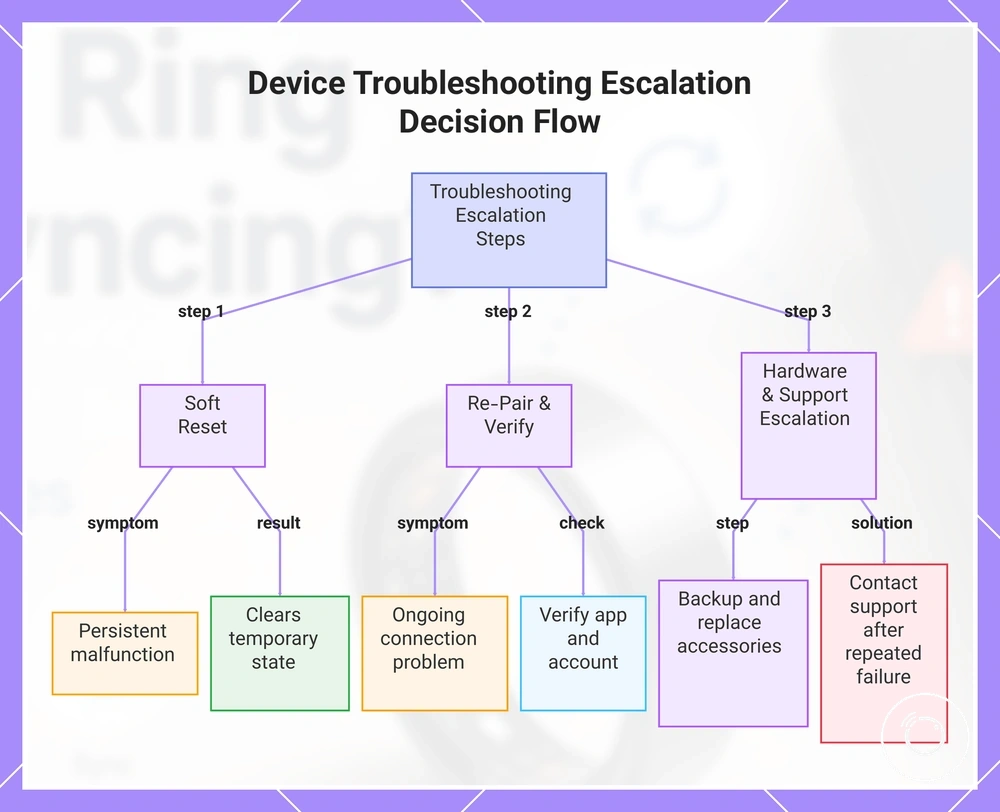
Escalation is appropriate when tracking, syncing, charging, and basic troubleshooting have been completed but the same issue continues. Reset, re-pair, replace accessories only when supported by the observed symptoms, or contact support after simpler checks because each action addresses a different possible cause.
Before escalating, confirm the setup and wearing steps are complete, then follow these decisions in order:
- Perform a soft reset after a persistent malfunction. If the ring or app remains unresponsive after normal restart attempts, use the device's supported reset method. A soft reset can clear a temporary operating state but does not confirm a hardware fault.
- Re-pair after an ongoing connection problem. If the ring is charged but continues to fail during syncing or pairing, remove the connection and re-pair it. Successful re-pairing suggests the problem was related to the connection state.
- Verify the app and account. If re-pairing succeeds but syncing still fails, confirm you are signed in to the correct account and using the current app version before moving to further support escalation.
- Replace accessories only when evidence supports an accessory issue. If repeated no-charge behavior continues after checking the cable, charging case, contacts, and power source, replacing accessories may be appropriate when damage or poor contact is present.
- Complete a data backup before deeper changes. If a backup, export, or sync option is available, complete it before actions that could remove local settings. Resetting should not be expected to recover data that was never captured.
- Contact support after repeated failure. If the same issue returns after these steps, contact support with the symptoms and the troubleshooting already completed. Repeated failure can indicate a device, accessory, account, or app-level issue rather than user error.
Repeated failures after these escalation steps are a practical boundary for further self-troubleshooting. Continuing the same actions without a different result is less useful than providing support with the observed failure pattern and completed checks.
This chart outlines the step-by-step escalation process for device issues after basic troubleshooting, indicating when to perform a soft reset, re-pair, replace accessories, or contact support based on observed symptoms.
Questions About Smart Ring Tracking and Syncing Problems
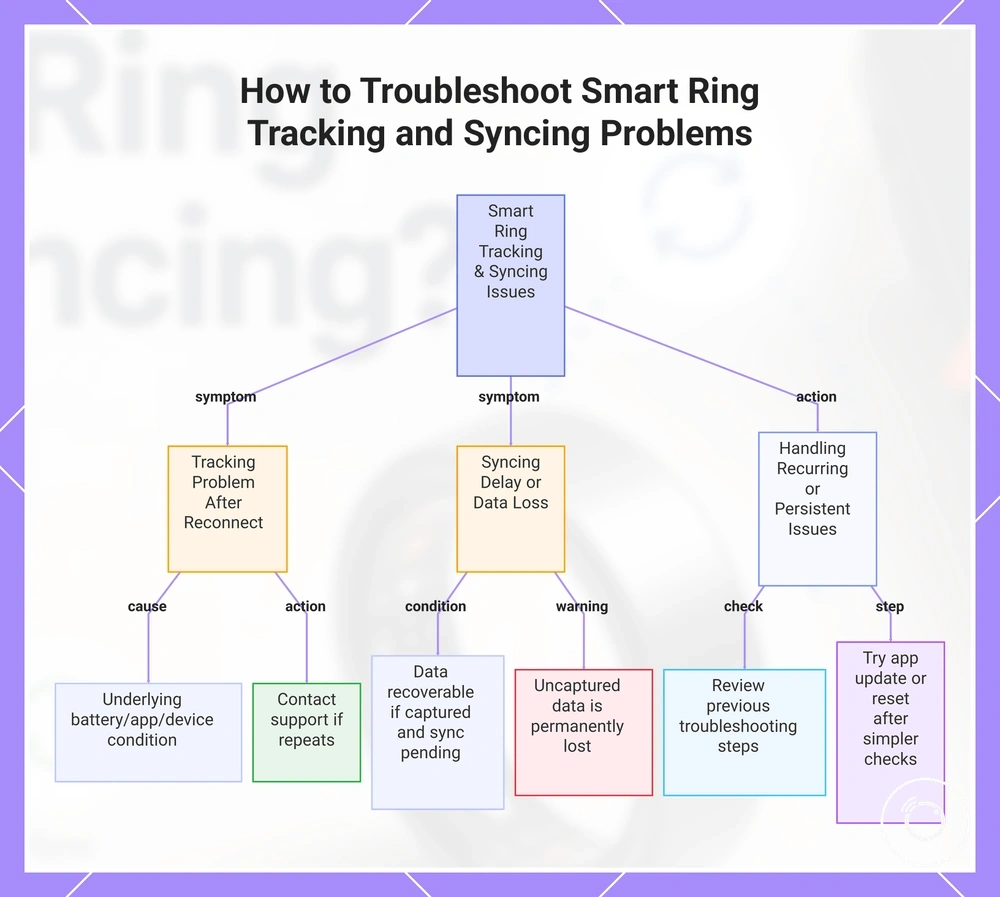
Why is there still a tracking problem after the ring reconnects? A tracking problem can return when reconnecting restores communication but does not resolve the underlying battery, app, account, or device condition. If the problem repeats after reconnection, contact support rather than repeating the same steps.
Can a syncing problem resolve later? Yes, data may appear later when it was captured successfully but its transfer to the app was delayed. Data that was never captured cannot be recovered, so confirm that syncing has completed before treating the data gap as permanent.
Does an app update help with a syncing problem? An app update can help when the problem is caused by an outdated or malfunctioning app version. After updating, open the app and complete another sync; if the problem remains, check the connection, account, and device state.
Should I reset my smart ring immediately? No, a reset should follow simpler checks such as charging, connectivity, and app verification. If those checks do not resolve the smart ring issue, use the device’s supported reset process and contact support if the failure continues.
When can I recover data from a data gap? You can recover data only when the ring captured it and the information is still waiting to sync. If tracking stopped before the data was recorded, the missing information is not recoverable through a later sync or reset.
How should I handle a recurring issue? Review which troubleshooting steps have already produced a clear result before repeating them. A recurring issue after reconnecting, resetting, or completing an app update can indicate a device, accessory, account, or app-level problem that needs support.
This chart shows common smart ring tracking and syncing issues, their causes, and recommended steps to resolve them.